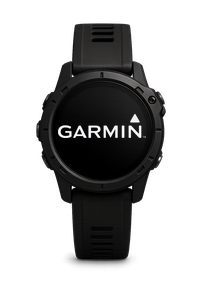
If you wear a Fitbit (Charge, Versa, Sense, Inspire) or a Google Pixel Watch, VertigoMe can read your sleep, steps and heart data on Android.
VertigoMe does not talk to these devices directly. They send their data to Health Connect, Google's free health hub on Android, and VertigoMe reads it from there.
On Android
Step 1: Make sure Health Connect is on your phone
On newer Android phones Health Connect is built in. On older ones you may need to install it.
- Open the Play Store.
- Search for Health Connect.
- Tap Install if you see it. If you see Open, you already have it.
If the Health Connect card is missing from VertigoMe's Connections screen, Health Connect is not installed or not available on your phone yet.
Step 2: Make sure the companion app shares with Health Connect
- Open the Fitbit app.
- Tap your profile picture.
- Look for Health Connect in the settings (sometimes under Connected apps).
- Turn it on and tap Allow all.
Step 3: Connect Health Connect in VertigoMe
- Open VertigoMe.
- Tap the gear icon in the top-left of the screen. A drawer slides in from the left.
- Tap Connections.
- Find the Health Connect card at the top and tap Connect. If it already says Connected, skip ahead.
- A short VertigoMe note explains what will be read. Tap Continue.
- The Health Connect permission screen appears. Tap Allow all, then Allow.
The button now reads Connected. The first time, VertigoMe looks back over the last 14 days in Health Connect.
Step 4: Check that it is working
- Open VertigoMe and tap the Monitor tab.
- Look at the Sleep and Physical Health cards.
On iPhone
The Fitbit app on iPhone does not share with Apple Health, so VertigoMe cannot read Fitbit data on iPhone. The Pixel Watch only works with Android phones. Some third-party apps can copy Fitbit data into Apple Health. If you use one, connect Apple Health in VertigoMe.
Troubleshooting
"Connected but no data"
There is a chain: device, companion app, Health Connect, VertigoMe. If one link is broken, VertigoMe sees nothing.
- Open the companion app and check today's numbers are there.
- Open Health Connect, tap App permissions, and check the companion app is allowed to write sleep, steps and heart data.
- If not, go back through Step 2.
"Heart rate works but no sleep"
In the Fitbit app's Health Connect settings, make sure Sleep is turned on. Each category has its own switch.
"I want to disconnect"
In VertigoMe, tap the Connected button on the Health Connect card. A window asks Disconnect Health Connect?. Tap Disconnect. To remove permissions too, open Health Connect, App permissions, VertigoMe.
Still stuck?
Write to us at [email protected] and tell us:
- Whether you are on iPhone or Android
- Your device model and a screenshot of Health Connect
- A screenshot if you can